← Posts

Solving Style Conflicts with Shadow DOM

Forget !important — try Shadow DOM instead

·10 min read
#web#Shadow DOM#gachon-tools

이 글에서 다룰 내용 >>

  • Shadow DOM이 무엇인지 간략하게 설명
  • 실제 적용한 방법과 트러블슈팅

1. 서론

Gachon Tools는 학교 LMS(학습 관리 시스템) 서비스 위에 렌더링되는 크롬 익스텐션이다. 이 프로젝트에 대한 이야기는 전에 작성한 우당탕탕 리액트로 크롬 익스텐션 만들기에 자세히 나와있다.

이 프로젝트를 진행하면서 한 가지 문제가 있었는데, 바로 LMS의 전역 스타일과 충돌하는 문제였다!

당시의 코드를 보면, Chakra UI의 Tab 컴포넌트를 사용할 때 어떻게든 스타일 충돌을 이겨내려는 몸부림을 볼 수 있다.. 😢

<Tab
  key={tab}
  position="relative"
  fontSize="14px"
  borderRadius="none"
  border="none"
  outline="none !important"
  _hover={{
    _dark: { bg: 'blue.800', color: 'white' },
  }}
  _focus={{ outline: 'none', bg: 'none', border: 'none' }}
  _active={{ outline: 'none', bg: 'none' }}
  _light={{ color: 'gray.700', _selected: { color: 'blue.600' } }}
  _dark={{ color: 'gray.200', _selected: { color: 'blue.400' } }}
  _selected={{ color: 'blue.600', borderBottom: '2px solid' }}
>
  {tab}
</Tab>

이런 식의 스타일 오버라이딩을 하니 유지보수하기 너무 힘들었다. 그리고 이런 방식으로는 모든 스타일 충돌을 완벽하게 해결하기 어려웠다.
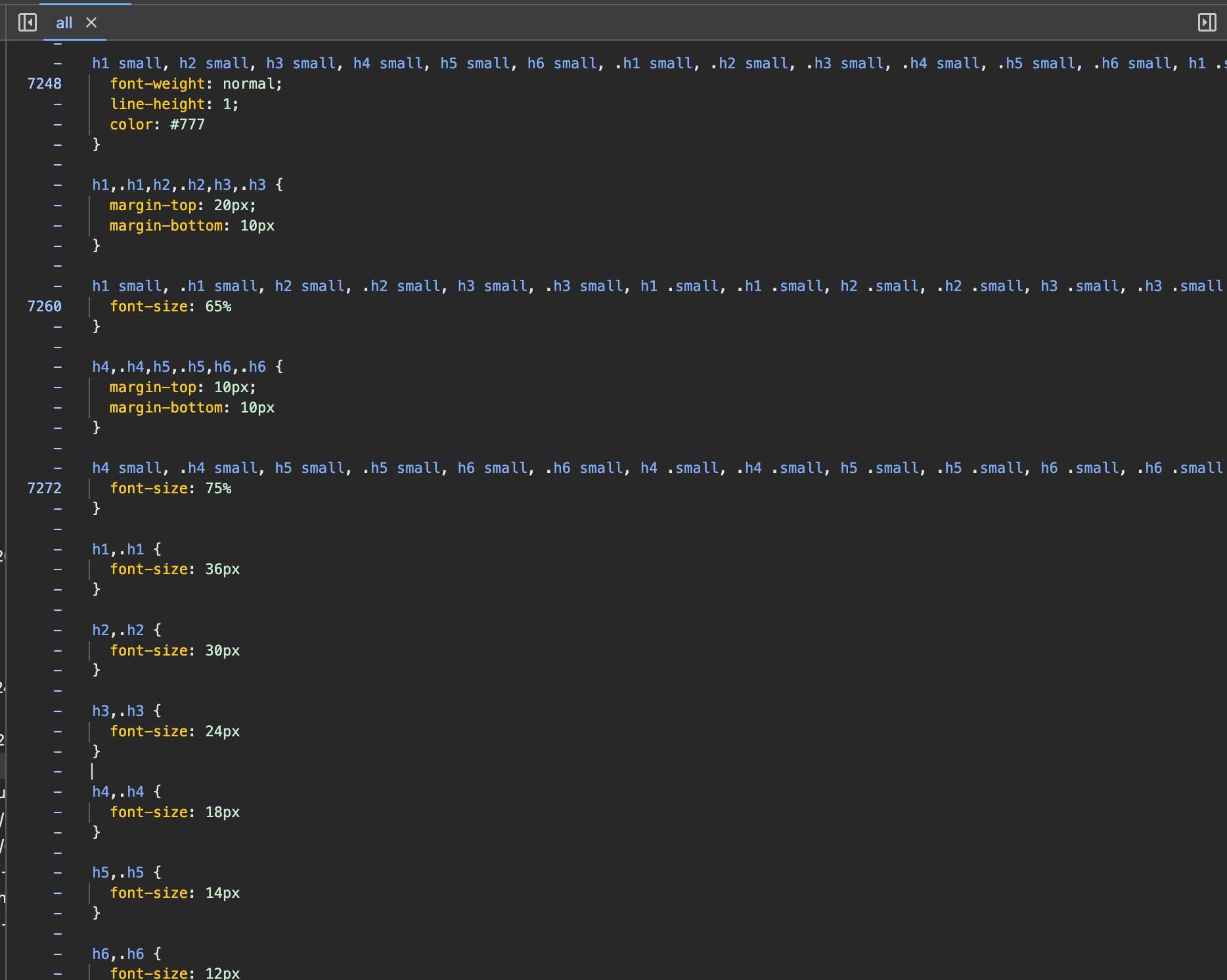
LMS 전역 스타일 중 일부LMS 전역 스타일 중 일부

기존에는 JavaScript의 createElement 메소드를 사용해 DOM 요소를 생성하고, 이를 직접 LMS 페이지에 주입하는 방식으로 진행했다.
그러나 이 방식은 LMS의 전역 스타일과 충돌 문제를 발생시켰고, 이를 해결하기 위해 복잡한 스타일 오버라이딩을 해야했다. 결과적으로 퍼블리싱에 많은 시간을 투자해야 했다.

이 문제를 해결하기 위해 Shadow DOM이라는 웹 표준 기술을 도입했다. Shadow DOM은 독립적인 DOM 트리를 생성하여 스타일을 캡슐화함으로써, 외부 스타일과의 충돌을 효과적으로 방지할 수 있었다.


이 글에서는 Shadow DOM에 대해 간략하게 살펴보고, Gachon Tools에서 Shadow DOM을 적용한 과정을 소개하겠다. 또한, 적용 과정에서 겪은 어려움과 해결 방법도 함께 공유하여, 비슷한 문제에 직면한 개발자들에게 실질적인 도움이 되고자 한다.


2. Shadow DOM 이해하기

2.1. Shadow DOM이란?

웹 페이지를 만들다 보면 복잡한 구조와 스타일을 가진 요소들을 자주 만나게 된다. 이런 요소들을 매번 처음부터 만드는 것은 비효율적이고, 기존 페이지와의 충돌도 걱정된다. 이럴 때 사용하는 것이 바로 Shadow DOM이다.

Shadow DOM은 웹 페이지 안에 독립적인 DOM 트리를 만드는 기술이다. 이 DOM 트리는 메인 문서의 DOM과 분리되어 있어, 자체적인 스코프를 가진다. 이를 통해 스타일과 기능을 캡슐화하여 외부의 영향을 받지 않고 독립적으로 동작할 수 있다.

실제로 우리가 자주 사용하는 <video>, <audio>, <input type="date"> 같은 HTML 요소들도 내부적으로 Shadow DOM을 사용한다. 이 요소들은 복잡한 내부 구조를 가지고 있지만, Shadow DOM 덕분에 간단한 태그 하나로 쉽게 사용할 수 있다.
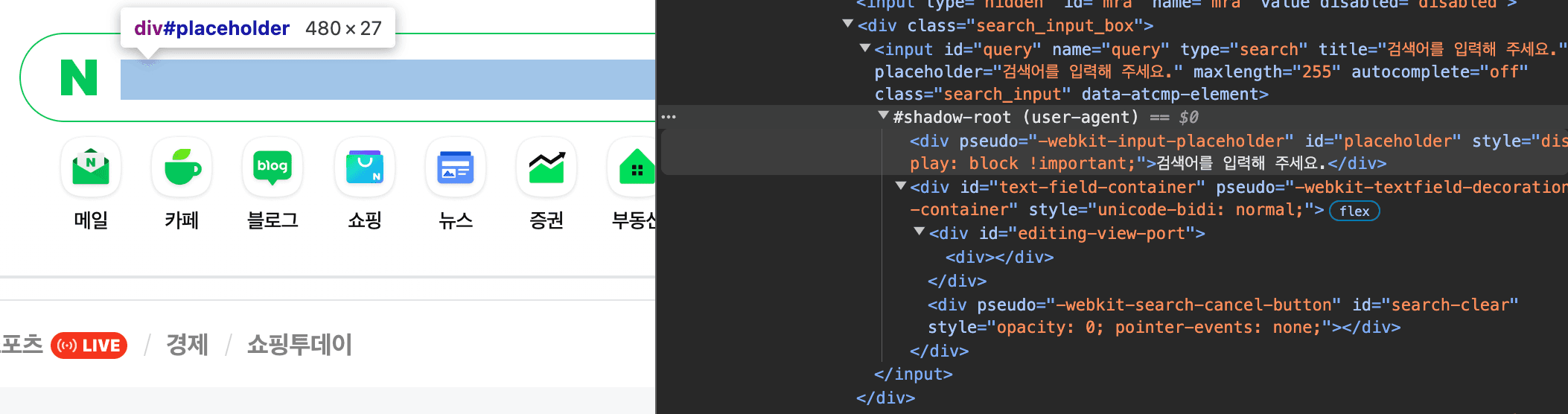
네이버의 검색 input네이버의 검색 input

이처럼 Shadow DOM은 복잡한 컴포넌트를 간단하게 사용할 수 있게 해주며, 동시에 스타일 충돌 문제를 해결할 수 있는 강력한 도구이다. 웹 컴포넌트를 구성하는 핵심 기술 중 하나로, 웹 개발의 모듈화와 재사용성을 크게 향상시킨다.

2.2. Shadow DOM의 구조

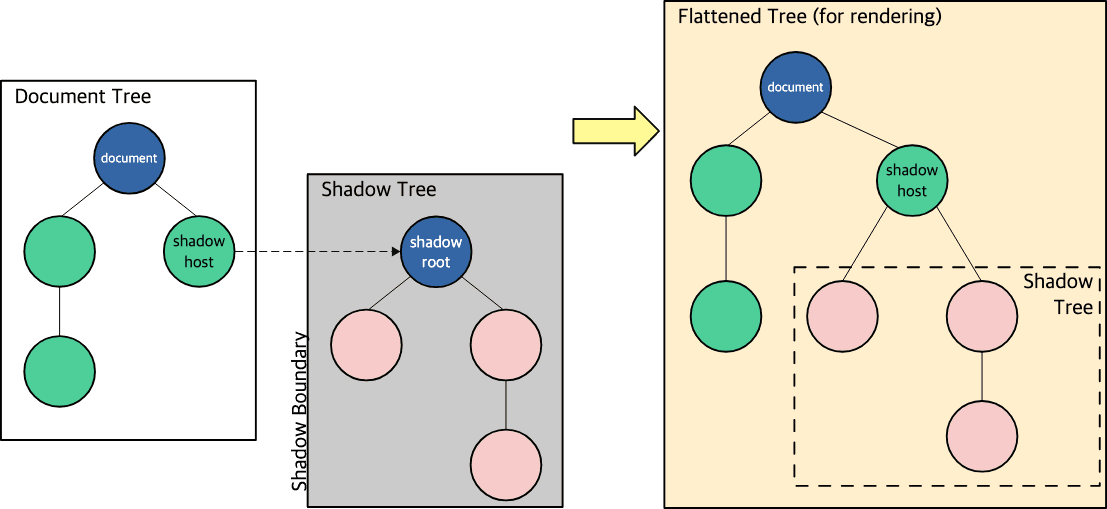
Shadow DOM의 구조는 다음과 같은 주요 요소로 구성된다.

  1. Shadow host: Shadow DOM이 부착되는 일반 DOM의 요소
  2. Shadow tree: Shadow DOM 내부의 DOM 트리
  3. Shadow boundary: Shadow DOM과 일반 DOM 사이의 경계
  4. Shadow root: Shadow tree의 루트 노드
https://developer.mozilla.org/en-US/docs/Web/API/Web_components/Using_shadow_DOMhttps://developer.mozilla.org/en-US/docs/Web/API/Web_components/Using_shadow_DOM

이 구조를 통해 Shadow DOM은 외부와 분리된 독립적인 DOM 트리를 형성하고, 스타일과 기능의 캡슐화를 실현한다.

다음은 Shadow DOM을 생성하는 간단한 예제이다:

// Shadow DOM을 생성할 요소 선택
const host = document.querySelector('#host')

// Shadow DOM 생성
const shadowRoot = host.attachShadow({ mode: 'open' })

// Shadow DOM에 내용 추가
shadowRoot.innerHTML = `
  <style>
    p { color: red; }
  </style>
  <p>이 텍스트는 Shadow DOM 내부에 있습니다.</p>
`

이 코드는 Shadow DOM을 생성하고, 그 안에 스타일과 내용을 추가한다. 이렇게 생성된 Shadow DOM은 외부 스타일의 영향을 받지 않는 독립적인 컴포넌트가 된다.


2.2. Shadow DOM의 장단점

Shadow DOM은 강력한 기능을 제공하지만, 모든 상황에 적합한 해결책은 아니다.
따라서 장단점을 잘 이해하고, 프로젝트의 특성과 요구사항을 고려하여 Shadow DOM 사용 여부를 결정해야 한다.

장점

  • 스타일 격리: 외부 스타일의 영향을 받지 않아 예측 가능한 스타일링이 가능하다.
  • 캡슐화: 컴포넌트의 내부 구조를 숨겨 더 깔끔한 DOM을 유지할 수 있다.
  • 스코프 제한: JavaScript와 CSS의 스코프를 제한하여 충돌을 방지한다.
  • 성능 최적화: 브라우저가 더 효율적으로 스타일을 적용할 수 있다.

단점

  • 학습 곡선: 새로운 개념과 API를 학습해야 한다.
  • 디버깅의 어려움: Shadow DOM 내부 구조가 숨겨져 있어 디버깅이 복잡할 수 있다.
  • 외부 스타일 적용의 어려움: 전역 스타일을 Shadow DOM 내부에 적용하기 어렵다.
  • 브라우저 지원: 일부 구형 브라우저에서는 지원되지 않는다.

Shadow DOM에 대한 더 자세한 내용은 아래 자료를 참고하길 바란다.


3. Shadow DOM 적용 과정(Gachon Tools)

앞서 Shadow DOM의 개념과 구조에 대해 알아보았다. 이제 Gachon Tools 크롬 익스텐션에서 어떻게 적용했는지 알아보겠다.

3.1. 프로젝트 개요

Gachon Tools 프로젝트는 Vite와 @crxjs/vite-plugin을 사용하여 개발된 크롬 익스텐션이다. 이 프로젝트는 개발 과정에서 Chakra UI에서 Tailwind CSS로 마이그레이션하면서 Shadow DOM 적용 방식도 변경되었다. 각각의 적용 방식을 살펴보며 Shadow DOM의 실제 사용법을 확인해보자.

3.2. Chakra UI + Emotion 사용 시

초기에는 Chakra UI와 Emotion을 사용했고, react-shadow 라이브러리를 활용하여 Shadow DOM을 구현했다.

import { PropsWithChildren } from 'react'
import createCache from '@emotion/cache'
import { CacheProvider, EmotionCache } from '@emotion/react'
import { useEffect, useRef, useState } from 'react'
import root from 'react-shadow/emotion'

export function ShadowRootWrapper({ children }: PropsWithChildren) {
  const shadowRef = useRef<HTMLElement>(null)

  const [emotionCache, setEmotionCache] = useState<EmotionCache | null>(null)

  useEffect(() => {
    if (!shadowRef.current?.shadowRoot) return

    const cache = createCache({
      key: 'shadow',
      container: shadowRef.current.shadowRoot,
    })

    setEmotionCache(cache)
  }, [])

  return (
    <root.div ref={shadowRef}>
      <CacheProvider value={emotionCache}>{emotionCache ? children : null}</CacheProvider>
    </root.div>
  )
}

이 코드는 react-shadow/emotion을 사용해 Shadow DOM을 생성하고, Emotion의 CacheProvider를 통해 스타일을 주입한다.


Chakra UI를 Shadow DOM 내에서 사용하기 위해서는 다음과 같이 ChakraProvider를 설정해야 한다.

import {PropsWithChildren} from 'react' import {ChakraProvider} from '@chakra-ui/react'

import { ShadowRootWrapper } from './ShadowRootWrapper'
import { customTheme } from '@/constants/customTheme'

export function ShadowChakraProvider({ children }: PropsWithChildren) {
 return (
   <ShadowRootWrapper>
     <ChakraProvider cssVarsRoot=":host,:root" theme={customTheme}> // 👈
       {children}
     </ChakraProvider>
   </ShadowRootWrapper>
 )
}

이 문서를 보면, cssVarsRoot 프로퍼티를 통해 CSS variables를 붙일 요소를 정할 수 있다.

여기서 cssVarsRoot=":host,:root"는 Chakra UI의 CSS 변수를 Shadow DOM의 :host와 일반 DOM의 :root에 모두 적용하도록 설정한 것이다. 이를 통해 Shadow DOM 내부와 외부에서 동일한 스타일 변수를 사용할 수 있다.

3.3. Tailwind CSS 사용 시

Tailwind CSS로 마이그레이션하면서 Shadow DOM을 직접 구현하는 방식으로 변경했다.

import { SHADOW_HOST_ID } from '@/constants'

export default function createShadowRoot(): ShadowRoot {
  const host = document.createElement('div')
  host.setAttribute('id', SHADOW_HOST_ID)
  const shadowRoot = host.attachShadow({ mode: 'open' })
  document.body.appendChild(host)

  return shadowRoot
}

이 방식은 앞서 설명한 Shadow DOM의 기본 구조를 직접 구현한 것이다. createShadowRoot 함수는 Shadow host를 생성하고, 이에 Shadow root를 연결한 후, 이를 문서에 추가한다. 이 함수를 통해 프로젝트 어디서든 쉽게 Shadow DOM을 생성하고 사용할 수 있다.


4. 트러블슈팅

Shadow DOM을 적용하는 과정에서 개발 환경에서의 CSS 주입과 외부 라이브러리 스타일 적용에 관한 문제를 겪었다. 이를 해결하기 위해 다양한 방법을 시도해보았다.

4.1. 개발 환경에서의 CSS 주입 문제

문제 상황

개발 환경에서 CSS가 Shadow DOM 내부로 제대로 주입되지 않는 문제가 발생했다. 특히 Hot Module Replacement(HMR) 상황에서 import "index.css"가 예상대로 동작하지 않았다.

원인 분석

이슈를 참고했을 때, HMR 상황에서는 import "index.css"이 제대로 동작하지 않을 수 있다고 한다.

  1. 일반적으로 import "index.css"는 스타일을 document.head에 자동으로 주입한다.
  2. Tailwind CSS를 사용할 때는 index.css 파일을 직접 수정하지 않기 때문에, HMR이 제대로 트리거되지 않는다.

해결 방법

이 문제를 해결하기 위해, 개발 환경에서만 동작하는 특별한 로직을 추가했다.

import { SHADOW_HOST_ID } from '@/constants'

const isDev = import.meta.env.MODE === 'development'

export default function createShadowRoot(): ShadowRoot {
  const host = document.createElement('div')
  host.setAttribute('id', SHADOW_HOST_ID)
  const shadowRoot = host.attachShadow({ mode: 'open' })

  // 👇
  if (isDev) {
    const styleElement = document.querySelector('style[data-vite-dev-id]')

    if (styleElement) {
      shadowRoot.appendChild(styleElement)
    }
  }

  document.body.appendChild(host)

  return shadowRoot
}

이 코드는 개발 환경에서 Vite가 생성한 스타일 요소(style[data-vite-dev-id])를 찾아 Shadow DOM에 직접 주입한다. 이를 통해 HMR 상황에서도 스타일이 정상적으로 적용되는 것을 확인할 수 있었다.

4.2. 외부 라이브러리 스타일 적용 문제

문제 상황

react-easy-crop 라이브러리를 사용했을 때, Shadow DOM 내부에서 해당 라이브러리의 스타일이 적용되지 않았다.

원인 분석

개발자 도구로 확인해본 결과, 라이브러리의 CSS가 document.head에 주입되고 있었다. Shadow DOM은 외부 스타일을 상속받지 않기 때문에, 이 스타일이 Shadow DOM 내부에 적용되지 않았던 것이다.

해결 방법

외부 라이브러리의 CSS를 문자열로 받아와 Shadow DOM에 직접 주입하는 방식을 사용했다.

Vite의 ?inline 기능을 활용하여 외부 라이브러리의 CSS를 문자열로 받아와 Shadow DOM에 직접 주입하는 방식을 사용했다.

Vite에서는 ?inline 쿼리 매개변수를 사용하여 CSS의 자동 주입을 비활성화할 수 있다. 이 기능을 활용하면 CSS 내용을 문자열로 받아올 수 있다.

import './foo.css' // 페이지에 스타일이 추가됨
import otherStyles from './bar.css?inline' // 스타일이 추가되지 않음

이 특성을 활용하여 다음과 같이 코드를 작성했다.


export default function createShadowRoot(styles: string[]): ShadowRoot {
  const host = document.createElement('div')
  host.setAttribute('id', SHADOW_HOST_ID)
  const shadowRoot = host.attachShadow({ mode: 'open' })

  // 👇
  const globalStyleSheet = new CSSStyleSheet()
  globalStyleSheet.replaceSync(styles.join('\n'))
  shadowRoot.adoptedStyleSheets = [globalStyleSheet]

  document.body.appendChild(host)

  return shadowRoot
}

그리고 이 함수를 사용할 때는 다음과 같이 CSS 파일을 import했다.


'react-easy-crop/react-easy-crop.css?inline' // 👈

import { App } from './App'
import styles from '@/styles/index.css?inline'
import createShadowRoot from '@/utils/createShadowRoot'

function initApp() {
document.getElementById('back-top')?.remove()

const shadowRoot = createShadowRoot([styles, cropperStyles]) // 👈
createRoot(shadowRoot).render(<App />)
}

// ...

이 방식을 통해 외부 라이브러리의 스타일을 문자열로 받아와 Shadow DOM 내부에 직접 주입할 수 있었다. 결과적으로 react-easy-crop 라이브러리의 스타일이 Shadow DOM 내부에서 정상적으로 적용되는 것을 확인할 수 있었다.

실제 적용된 코드는 이 곳에서 확인할 수 있다.

5. 결론

Shadow DOM을 Gachon Tools 프로젝트에 적용한 결과, 다음과 같은 이점을 얻을 수 있었다.

  1. 스타일 충돌 문제를 효과적으로 해결
  2. 퍼블리싱에 필요한 개발 리소스 절감
  3. 모든 환경에서 일관된 UI 제공

물론 개발 과정에서 예상치 못한 문제들도 있었지만, 이를 해결하며 Shadow DOM에 대한 이해를 더욱 깊게 할 수 있었다.

What this post covers >>

  • A brief explanation of what Shadow DOM is
  • How it was actually applied and troubleshooting

1. Introduction

Gachon Tools is a Chrome extension that renders on top of the university's LMS (Learning Management System). I wrote about this project in detail in a previous post, Building a Chrome Extension with React.

While working on this project, there was one major problem: style conflicts with the LMS's global styles!

Looking at the code from that time, you can see the desperate struggle to overcome style conflicts when using Chakra UI's Tab component.. 😢

<Tab
  key={tab}
  position="relative"
  fontSize="14px"
  borderRadius="none"
  border="none"
  outline="none !important"
  _hover={{
    _dark: { bg: 'blue.800', color: 'white' },
  }}
  _focus={{ outline: 'none', bg: 'none', border: 'none' }}
  _active={{ outline: 'none', bg: 'none' }}
  _light={{ color: 'gray.700', _selected: { color: 'blue.600' } }}
  _dark={{ color: 'gray.200', _selected: { color: 'blue.400' } }}
  _selected={{ color: 'blue.600', borderBottom: '2px solid' }}
>
  {tab}
</Tab>

This kind of style overriding made maintenance extremely difficult. And this approach couldn't perfectly resolve all style conflicts.

Some of the LMS global stylesSome of the LMS global styles

Previously, we used JavaScript's createElement method to create DOM elements and inject them directly into the LMS page.
However, this approach caused conflicts with the LMS's global styles, requiring complex style overrides to resolve them. As a result, we had to invest significant time in styling.

To solve this problem, we adopted Shadow DOM, a web standard technology. Shadow DOM creates an independent DOM tree that encapsulates styles, effectively preventing conflicts with external styles.


In this post, I'll briefly cover Shadow DOM and introduce the process of applying it in Gachon Tools. I'll also share the challenges encountered during the process and how they were resolved, hoping to provide practical help to developers facing similar issues.


2. Understanding Shadow DOM

2.1. What is Shadow DOM?

When building web pages, you frequently encounter elements with complex structures and styles. Building these from scratch every time is inefficient, and conflicts with the existing page are always a concern. This is where Shadow DOM comes in.

Shadow DOM is a technology for creating an independent DOM tree within a web page. This DOM tree is separated from the main document's DOM and has its own scope. This enables encapsulation of styles and functionality, allowing it to operate independently without being affected by external influences.

In fact, commonly used HTML elements like <video>, <audio>, and <input type="date"> internally use Shadow DOM. These elements have complex internal structures, but thanks to Shadow DOM, they can be easily used with a single simple tag.

Naver's search inputNaver's search input

As such, Shadow DOM allows complex components to be used simply while also being a powerful tool for resolving style conflicts. As one of the core technologies that compose Web Components, it greatly improves modularity and reusability in web development.

2.2. Structure of Shadow DOM

The structure of Shadow DOM consists of the following key elements:

  1. Shadow host: The regular DOM element to which the Shadow DOM is attached
  2. Shadow tree: The DOM tree inside the Shadow DOM
  3. Shadow boundary: The boundary between the Shadow DOM and the regular DOM
  4. Shadow root: The root node of the Shadow tree
https://developer.mozilla.org/en-US/docs/Web/API/Web_components/Using_shadow_DOMhttps://developer.mozilla.org/en-US/docs/Web/API/Web_components/Using_shadow_DOM

Through this structure, Shadow DOM forms an independent DOM tree separated from the outside, achieving encapsulation of styles and functionality.

Here is a simple example of creating a Shadow DOM:

// Select the element to create Shadow DOM on
const host = document.querySelector('#host')

// Create Shadow DOM
const shadowRoot = host.attachShadow({ mode: 'open' })

// Add content to Shadow DOM
shadowRoot.innerHTML = `
  <style>
    p { color: red; }
  </style>
  <p>This text is inside the Shadow DOM.</p>
`

This code creates a Shadow DOM and adds styles and content inside it. The Shadow DOM created this way becomes an independent component unaffected by external styles.


2.2. Pros and Cons of Shadow DOM

Shadow DOM provides powerful features, but it's not a suitable solution for every situation.
Therefore, it's important to understand the pros and cons well and decide whether to use Shadow DOM based on your project's characteristics and requirements.

Pros

  • Style isolation: Predictable styling is possible without being affected by external styles.
  • Encapsulation: A cleaner DOM can be maintained by hiding the internal structure of components.
  • Scope limitation: Prevents conflicts by limiting the scope of JavaScript and CSS.
  • Performance optimization: The browser can apply styles more efficiently.

Cons

  • Learning curve: New concepts and APIs need to be learned.
  • Debugging difficulty: Debugging can be complex as the internal structure of Shadow DOM is hidden.
  • Difficulty applying external styles: It's hard to apply global styles inside Shadow DOM.
  • Browser support: Not supported in some older browsers.

For more details on Shadow DOM, please refer to the resources below.


3. Applying Shadow DOM (Gachon Tools)

We've covered the concept and structure of Shadow DOM. Now let's look at how it was applied in the Gachon Tools Chrome extension.

3.1. Project Overview

The Gachon Tools project is a Chrome extension developed using Vite and @crxjs/vite-plugin. During development, the Shadow DOM implementation approach also changed as the project migrated from Chakra UI to Tailwind CSS. Let's look at each approach to see how Shadow DOM is actually used.

3.2. With Chakra UI + Emotion

Initially, we used Chakra UI and Emotion, implementing Shadow DOM with the react-shadow library.

import { PropsWithChildren } from 'react'
import createCache from '@emotion/cache'
import { CacheProvider, EmotionCache } from '@emotion/react'
import { useEffect, useRef, useState } from 'react'
import root from 'react-shadow/emotion'

export function ShadowRootWrapper({ children }: PropsWithChildren) {
  const shadowRef = useRef<HTMLElement>(null)

  const [emotionCache, setEmotionCache] = useState<EmotionCache | null>(null)

  useEffect(() => {
    if (!shadowRef.current?.shadowRoot) return

    const cache = createCache({
      key: 'shadow',
      container: shadowRef.current.shadowRoot,
    })

    setEmotionCache(cache)
  }, [])

  return (
    <root.div ref={shadowRef}>
      <CacheProvider value={emotionCache}>{emotionCache ? children : null}</CacheProvider>
    </root.div>
  )
}

This code creates a Shadow DOM using react-shadow/emotion and injects styles through Emotion's CacheProvider.


To use Chakra UI within a Shadow DOM, the ChakraProvider needs to be configured as follows:

import {PropsWithChildren} from 'react' import {ChakraProvider} from '@chakra-ui/react'

import { ShadowRootWrapper } from './ShadowRootWrapper'
import { customTheme } from '@/constants/customTheme'

export function ShadowChakraProvider({ children }: PropsWithChildren) {
 return (
   <ShadowRootWrapper>
     <ChakraProvider cssVarsRoot=":host,:root" theme={customTheme}> // 👈
       {children}
     </ChakraProvider>
   </ShadowRootWrapper>
 )
}

According to this documentation, the cssVarsRoot property allows you to specify which element CSS variables should be attached to.

Here, cssVarsRoot=":host,:root" configures Chakra UI's CSS variables to be applied to both the Shadow DOM's :host and the regular DOM's :root. This allows the same style variables to be used both inside and outside the Shadow DOM.

3.3. With Tailwind CSS

After migrating to Tailwind CSS, we switched to implementing Shadow DOM directly.

import { SHADOW_HOST_ID } from '@/constants'

export default function createShadowRoot(): ShadowRoot {
  const host = document.createElement('div')
  host.setAttribute('id', SHADOW_HOST_ID)
  const shadowRoot = host.attachShadow({ mode: 'open' })
  document.body.appendChild(host)

  return shadowRoot
}

This approach directly implements the basic structure of Shadow DOM described earlier. The createShadowRoot function creates a Shadow host, attaches a Shadow root to it, and then adds it to the document. Through this function, Shadow DOM can be easily created and used anywhere in the project.


4. Troubleshooting

During the process of applying Shadow DOM, we encountered issues with CSS injection in the development environment and applying external library styles. We tried various methods to resolve these.

4.1. CSS Injection Issue in Development Environment

Problem

CSS was not being properly injected into the Shadow DOM in the development environment. In particular, import "index.css" was not working as expected during Hot Module Replacement (HMR).

Root Cause Analysis

According to this issue, import "index.css" may not work properly during HMR.

  1. Normally, import "index.css" automatically injects styles into document.head.
  2. When using Tailwind CSS, the index.css file is not directly modified, so HMR is not properly triggered.

Solution

To solve this problem, we added special logic that only runs in the development environment.

import { SHADOW_HOST_ID } from '@/constants'

const isDev = import.meta.env.MODE === 'development'

export default function createShadowRoot(): ShadowRoot {
  const host = document.createElement('div')
  host.setAttribute('id', SHADOW_HOST_ID)
  const shadowRoot = host.attachShadow({ mode: 'open' })

  // 👇
  if (isDev) {
    const styleElement = document.querySelector('style[data-vite-dev-id]')

    if (styleElement) {
      shadowRoot.appendChild(styleElement)
    }
  }

  document.body.appendChild(host)

  return shadowRoot
}

This code finds the style element generated by Vite (style[data-vite-dev-id]) in the development environment and injects it directly into the Shadow DOM. This confirmed that styles are properly applied even during HMR.

4.2. External Library Style Application Issue

Problem

When using the react-easy-crop library, its styles were not being applied inside the Shadow DOM.

Root Cause Analysis

Upon inspection with developer tools, the library's CSS was being injected into document.head. Since Shadow DOM does not inherit external styles, these styles were not being applied inside the Shadow DOM.

Solution

We used an approach of importing the external library's CSS as a string and injecting it directly into the Shadow DOM.

We leveraged Vite's ?inline feature to import the external library's CSS as a string and inject it directly into the Shadow DOM.

In Vite, you can disable automatic CSS injection using the ?inline query parameter. This feature allows you to receive the CSS content as a string.

import './foo.css' // Styles are added to the page
import otherStyles from './bar.css?inline' // Styles are NOT added

Using this feature, we wrote the following code:


export default function createShadowRoot(styles: string[]): ShadowRoot {
  const host = document.createElement('div')
  host.setAttribute('id', SHADOW_HOST_ID)
  const shadowRoot = host.attachShadow({ mode: 'open' })

  // 👇
  const globalStyleSheet = new CSSStyleSheet()
  globalStyleSheet.replaceSync(styles.join('\n'))
  shadowRoot.adoptedStyleSheets = [globalStyleSheet]

  document.body.appendChild(host)

  return shadowRoot
}

And when using this function, we imported the CSS files as follows:


'react-easy-crop/react-easy-crop.css?inline' // 👈

import { App } from './App'
import styles from '@/styles/index.css?inline'
import createShadowRoot from '@/utils/createShadowRoot'

function initApp() {
document.getElementById('back-top')?.remove()

const shadowRoot = createShadowRoot([styles, cropperStyles]) // 👈
createRoot(shadowRoot).render(<App />)
}

// ...

Through this approach, we were able to import external library styles as strings and inject them directly into the Shadow DOM. As a result, we confirmed that the react-easy-crop library's styles were properly applied inside the Shadow DOM.

The actual applied code can be found here.

5. Conclusion

As a result of applying Shadow DOM to the Gachon Tools project, we gained the following benefits:

  1. Effectively resolved style conflict issues
  2. Reduced development resources needed for styling
  3. Provided consistent UI across all environments

Of course, there were unexpected issues during the development process, but resolving them helped deepen our understanding of Shadow DOM.